Monday, June 23, 2025

How to integrate Google Auth with Oracle APEX using Social Sign-In feature

Oracle APEX has a number of options for letting users sign into the application. It ranges from authentication using Apex Users to Database Users and even custom sign-in options. But all of these come with an overhead of maintaining the user records in a database and naturally managing the security options such as password management, account expiration thresholds and resetting the user credentials.

So what if there's option that eliminates all of this and let's us design our App in such a way that users can login using a known third-party authentication such as Google Auth ? Well, Oracle APEX Social-Sign in features let's us do exactly the same. Let's see how to do it.

Configure Google OAuth Credentials:


- Login to Google Developer Console: https://console.developers.google.com

- Create a new project


- Navigate to OAuth Consent Screen


- Create a app registration and give some name to this app and provide your email address for communication
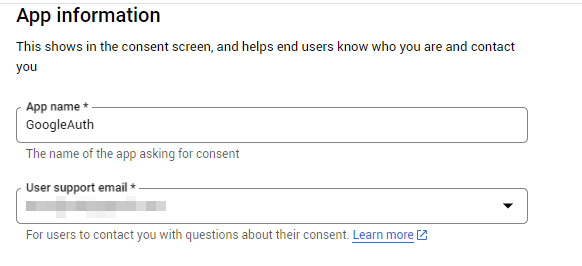


- Scroll down and navigate to Authorized Domains section


- Enter oraclecloudapps.com as an authorized domain


The reason behind selecting this domain is that when you run your Apex App, you will see  oraclecloudapps.com domain in the App URL Hence we are going to add it to the authorized domain list in Google developer console.


- Now, let's navigate to Credentials section


- Create credentials


- Create OAuth Client Id


Select Application Type as Web Application


Provide a relevant name for use case


Authorized Redirect URLs:


Here, enter your Apex App URL till /ords part and append /apex_authentication.callback after that.


For example if your App URL looks like this https://xyz1234-abcd1234.adb.us-chicago-1.oraclecloudapps.com/ords/appname/home then enter https://xyz1234-abcd1234.adb.us-chicago-1.oraclecloudapps.com/ords/apex_authentication.callback as Redirect URL.


- Click Create


- This will create a new Client Id and Client Secret. Make a note of these values.


- Navigate to the Apex App we want to incorporate with Google Auth


- Navigate to Shared Components


- Navigate to Credentials option under Workspace Objects


- Create a new Web Credential


- Provide a relevant name like Google Auth


- Select Authentication Type as OAuth2 Client Credentials Flow


- Provide Client ID and Client Secret obtained from Google developer console.


- Apply Changes


- Now, navigate to Shared Components


- Navigate to Authentication Schemes under Security section


- Create a new Authentication Scheme


- Enter a relevant name to scheme


- Select Scheme Type as Social Sign-In


- Select our newly created Credential Store 'Google Auth'


- Select Authentication Provider as Google


- Apply Changes


- Make sure the newly created Authentication Scheme is set as active scheme. If not, then click Make Current Scheme button to set it as an active scheme for the App.


- And that's it ! We have finished all the configuration to authenticate our App using Google Auth.


- Let's run the application.


- Voila ! We are presented with the familiar Google Auth screen that will let you login with any of your Google Accounts or will show you the active Google Accounts based on your active browser sessions.


- Once, we select any of our Google accounts (or login using a new one), the authentication will be complete and we will enter our application.


Note:

With all above configurations, we created Google Auth credentials only to enable the Google Auth feature for the Oracle APEX domain.

The Oracle APEX App as well as the Google Developer account do not capture or store other users' login credentials nor share the Google account details used to setup the Credentials Store with anyone else.

This method is safe and low maintenance and it only facilitates the authentication to our App using Google Auth.


Share:

Thursday, June 5, 2025

How to fix Timezone issue with dates in Oracle Fusion BI Publisher reports

Typically, the timezone issues in Oracle Fusion BI Publisher reports often arise due to differences between the database timezone, BI Publisher server timezone, and user session timezone.

When you use dates in Oracle Fusion BI Publisher reports, either in where conditions to compare with effective dates or filtering out the data based on date parameters of the report, sometimes the report shows data pertaining to the previous day instead of today's date that was passed in parameter (or was the actual effective date).

The reason behind this is the conflict between the Timezone set at user profile level and the Timezone at BI server level.

By default, BI Publisher may use the database timezone, which can lead to discrepancies when users from different regions view reports.


There are a few ways to fix this problem.


Method 1 - Report Properties:


- Open the report definition


- Navigate to Properties


- Navigate to Formatting tab


- Scroll down to FO Processing section


- Find the option named Report Timezone and set it to User


- Save the report


- With this change, the report should work based on the user Timezone in all the dates. If the user A has Timezone set to EST then the output will be according to that, if another user B has Timezone set to CST then that output will be based on Central Timezone.


Method 2 - Data Model:


- If one wants BI server to use a dedicated Timezone in all cases, then the configuration has to be made at Data Model level


- Navigate to the desired data model of the report


- Edit the query and modify the reference to the date column as shown below. I'm using SYSDATE as the basis column for my example and Central Timezone for my example.


SELECT
    to_char(CAST((from_tz(CAST(sysdate AS TIMESTAMP),
                          '+00:00') AT TIME ZONE 'America/Chicago') AS DATE),
            'DD-MON-YYYY') AS formatted_date
FROM
    dual


- View the output and we should see the date will be correctly shown based on Central Timezone


Method 3 - Template:


- If the timezone issue is happening only with the displayed format then we can update the BI Publisher RTF or XSL template to apply the correct timezone format.

- RTF Template: We have to use <?format-date:....> function to format dates correctly.

For example:

<?format-date:CREATION_DATE;'MM/dd/yyyy HH:mm:ss z';'America/New_York'?>


- XSL Template: We can use format-dateTime function to format dates correctly.

For example:

<xsl:value-of select="format-dateTime(CREATION_DATE, '[MM/dd/yyyy HH:mm:ss z]', 'America/New_York')"/>


Additional Checks:


In addition to all above methods, it's also recommended to verify if the Fusion application environment is reflecting the correct timezone or not.

To ensure this, check below steps:

- Navigate to Setup and Maintenance.


- Search for Manage Administrator Profile Values.


Ensure the values for below ones are set correctly:


FND_TIMEZONE


FND_SERVER_TIMEZONE


FND_TERRITORY


Share:

Tuesday, December 3, 2024

How to Implement Regular and Context Sensitive Descriptive Flexfields (DFFs) in Oracle Fusion Cloud

Descriptive Flexfields (DFFs) in Oracle Fusion Cloud are a powerful feature that allows users to extend ERP Cloud by adding custom fields to capture additional information without altering the underlying application framework. They are designed to be flexible and can be configured without programming changes.

Key Features of DFFs in Fusion Cloud:

Customizability: Add fields to capture additional data relevant to your business processes.

Flexibility: Enable or disable fields based on specific criteria.

Non-Technical approach: Configure fields through the application’s user interface without doing much technical work.

Context Sensitivity: Create context-sensitive fields that display based on specific conditions.

Segmentation: Define multiple fields within a single DFF.


Let's see the steps to configure DFF in Oracle ERP Cloud.

- Navigate to Setup and Maintenance


- Search for 'Manage Descriptive Flexfields'


- Let's take an example of Invoices. Search for Invoices.


- Click on Edit

- Under Global Segments section, Click + sign to configure a new field


- Let's create a new field using ATTRIBUTE1 and name it My Description. I'm using 30 Characters valueset as I want it to be a free text.

Let's provide relevant values for Prompt and Display Type.

Enable BI Enabled checkbox if you wish to enable it for use in Business Intelligence reports.


- Save and Close

- Let's add two more fields by following the above process -

My Date:


DS Comments:


- By now, out Global Segments should look like this -


- At this moment, we have configured the regular DFFs using Global Segments for Invoice form.

Configuring Context Sensitive DFFs in Oracle Oracle Fusion Cloud:

Context sensitive DFF lets us use the same underlying database column by different segments in different contexts.

For example, we can define a Location context that uses the following attributes:

ATTRIBUTE1 column for city

ATTRIBUTE2 column for state

ATTRIBUTE3 column for zip

We can also define a Contact context that uses the same columns for other attributes:

ATTRIBUTE1 column for email

ATTRIBUTE2 column for phone

ATTRIBUTE3 column for fax


Let's see how to configure Context Sensitive DFFs in Oracle Fusion

- Click on Manage Contexts button


- Click + Icon

- Create a new Context named My Group 1

- Check the Enabled checkbox


- Similarly, create another context named My Group 2


- Now, let's create three Segments under My Group 1 Context as shown below:


- And similarly, create two different Segments under My Group 2 Context as shown below:


- At this moment, we have created two contexts and configured different Segments under each context.


- Now, we need to deploy our DFF.


- Click on Deploy Flexfield button


- Once successfully deployed, click OK to close the popup


- Now, it's time to verify how our DFF segments appear on Invoices screen

- Navigate to Payables and Create a new Invoice

- Click Show More and navigate to Additional Information tab


- We can see our Global Segments as shown below -


- Now let's navigate to My Group drop-down. This is our Context Sensitive DFF.

- Let's select My Group 1, and we will see the segments pertaining to this specific context are shown: 


- Let's select context My Group 2 and we will see the segments pertaining to this context are shown:


Conclusion:

This way we can configure the regular (Global) as well as Context Specific DFFs in Oracle Fusion. DFFs help us configure additional information in ERP without the need of any technical configurations and/or coding. With Context Sensitive DFFs, we can use the same set of ATTRIBUTE columns in multiple contexts facilitating capturing of variety of additional information required for business.


Share:

Monday, September 23, 2024

How to Configure Spatial Geometry Objects in Geolocation Maps in Oracle APEX

In this post, we saw how to implement Geolocation Maps in Oracle Apex. In many use cases, you may need to draw certain features using coordinate and geometry information. Spatial Geometry objects can be used in such cases to make the geoprocessing easier.


Spatial geometry objects are drawn on the background map based on data in a table or returned by our query. Apex Maps support a rich set of built-in marker icons and shapes. Below are the supported spatial geometry objects in Apex Maps Region:


Points - Points display as markers e.g. user's current location or any specific point on the map.

Lines - Lines represent features like roads or it can be line drawn between variety of points.

Polygons - Polygons represent areas like states or countries or it can be drawn to show any other areas on the map.

Heat Map - Heat Maps are used to visualize the point density.

Extruded Polygons - These are displayed as three-dimensional, extruded Polygons. The height of the 3D object is based on a Numeric column value returned by our query.


Spatial geometry objects can be based on below sources:

Geometry Column - Supported datatypes include SDO_GEOMETRY, VARCHAR2, or CLOB. VARCHAR2 and CLOB columns must contain geometry information in GeoJSON format.

Numeric Columns - Columns representing longitude and latitude values but this option applies only to Point and Heat Map objects.


Let's take a took at each of these Spatial Geometry Objects and how we can use them in Apex Maps Region.


1. Points:

- Let's create a Layer in our Map

Layer Type: Points

As we learned above, Points layer can be based on Numeric values one for Latitude and other for Longitude. So let's use a simple query with sample values indicating a specific point on the map.


SQL Query:

SELECT TO_NUMBER('40.79261211884605') P_LAT 
      ,TO_NUMBER('-73.95252971760179') P_LONG
FROM DUAL


- Let's specify fa-location-arrow in Icon CSS Classes under Point Objects section.


- Run the App.


- As we can see the Point is denoted by an Arrow at the exact point based on Latitude and Longitude.


2. Lines:

- Let's create a new Layer in our Map

Layer Type: Lines

Lines layer needs GeoJSON format as the source. So let's build a query to generate data in GeoJSON format.
This will consist of any two points on the map (from and to) and their corresponding Latitude and Longitude values.


SQL Query:

SELECT 
'
{
"type": "LineString",
"coordinates": [
[
-73.95252971760179,
40.79261211884605
],
[
-73.95345327758079,
40.791114880267148
]
]
}
' geojson_val
FROM DUAL


- Let's specify the line properties:

Stroke Style: Dotted

Stroke Color: Red

Stroke Width: 7


- Run the App.


- As we can see a dotted Line is drawn over our map in Red color based on our coordinates.

We can also see a new check-box has been added on the map indicating controls for Line layer.


3. Polygons:

- Let's create a new Layer in our Map

Layer Type: Polygons

Polygons layer needs GeoJSON format as the source. So let's build a query to generate data in GeoJSON format.
This will consist of a number of points on the map (forming a Polygonal shape) and their corresponding Latitude and Longitude values. I'm forming the Polygon using 5 points on the map.


SQL Query:

SELECT 
'
{
"type": "Polygon",
"coordinates": [
[
[
-73.9684379656287,
40.78569943754278
],
[
-73.9629016692047,
40.78849384000406
],
[
-73.95766551865343,
40.789760807246765
],
[
-73.95895386999608,
40.783522052350584
]
,
[
-73.96569143411632,
40.7829049598581
]
,
[
-73.9684379656287,
40.78569943754278
]
]
]
}
' geojson_val
FROM DUAL


- Let's specify the Appearance properties:

Fill Color: Grey

Fill Opacity: 0.5

Stroke Color: Red


- Run the App.


- As we can see a Semi-Transparent Polygon drawn over our map in Red color based on our coordinates.

We can also see a new check-box has been added on the map indicating controls for Polygon layer.


4. Extruded Polygons:

- Let's create a new Layer in our Map

Layer Type: Extruded Polygons

Polygons layer needs GeoJSON format as the source. So let's build a query to generate data in GeoJSON format.
This will consist of a number of points on the map (forming a Polygonal shape) and their corresponding Latitude and Longitude values. I'm forming the Polygon using 4 points on the map to show a building in 3D format.

Here' we can see the query also has another column E_VAL with value 70 . This indicates the Extrusion Value for this layer which is basically the value to determine the height of the extruded polygon.


SQL Query:

SELECT 
'
{
"type": "Polygon",
"coordinates": [
[
[
-73.95243322590251,
40.79222980941566
],
[
-73.95211869237345,
40.79209869069768
],
[
-73.95250182333042,
40.79162315684402
],
[
-73.95284231859179,
40.791672689498604
]
,
[
-73.95243322590251,
40.79222980941566
]
]
]
}
' geojson_val
,70 E_VAL
FROM DUAL


- Let's specify the Appearance properties:

Fill Color: Lavender

Extrusion Value Column: E_VAL (This is the column returned by our query)

Unit: Meter

Fill Opacity: 0.5


- Run the App.


- As we can see a Semi-Transparent Polygon drawn over a building in Lavender color based on our coordinates.

We can also see a new check-box has been added on the map indicating controls for Extruded Polygon layer.


This is how we can leverage various Spatial Geometry Objects in Oracle Apex Map Region to draw a variety of objects over our Geolocation Maps.


Share: