Friday, July 16, 2021

Difference between FBDI, ADFDI and Web Services in Oracle Fusion

When it comes to Interfaces/Conversions and Integrations, Oracle ERP Cloud offers variety of options to be utilized based on business requirements. FBDI, ADFDI and Web Services are amongst the most commonly used ones.

Let's see how these are different from each other and what then can be used for.


File-Based Data Import (FBDI)

Application Development Framework Desktop Integration (ADFDI)

Web Services 

Recommended for bulk data conversions & feeds from external systems

Recommended for regular loads/updates based on manually compiled data

Standard way to integrate two web-based applications

Data file prepared offline - Not connected to cloud instance

Excel sheet connected to the instance - Similar to WebADI in EBS

Web based APIs that can be accessed by heterogeneous systems

Validation is done after full upload

Excel validation via list of values

Validation after making the web service call

Requires moderate technical expertise

Very user friendly

Highly technical

Extensive data preparation effort

Less effort in preparing excel data

Less effort in preparing data for desired tags in API calls

Very fast upload

Slower upload compared to FBDI

Considerably slower due to row-by-row operations

No plugins required

Works via desktop Excel plugin

Custom integration processes to invoke inbound/outbound SOAP/REST APIs

Bulk load via CSV files

Data upload directly from Excel

Custom integration processes to invoke inbound/outbound SOAP/REST APIs


Share:

Wednesday, July 7, 2021

SOAP Webservice to Run a BI Publisher Report in Oracle Fusion

What if we want to create a process in Oracle Fusion, similar to an outbound interface (in EBS) where we write complex queries and the program output is fed to an external system ?

Look no further ! Oracle has provided a webservice ExternalReportWSSService with 'runReport' operation which helps to run a report which is on BIP of Oracle ERP Cloud and retrieve the output in base64 format.

Webservice details -

Webservice - ExternalReportWSSService

Operation - runReport

Service WSDL URL: https://servername/xmlpserver/services/ExternalReportWSSService?WSDL

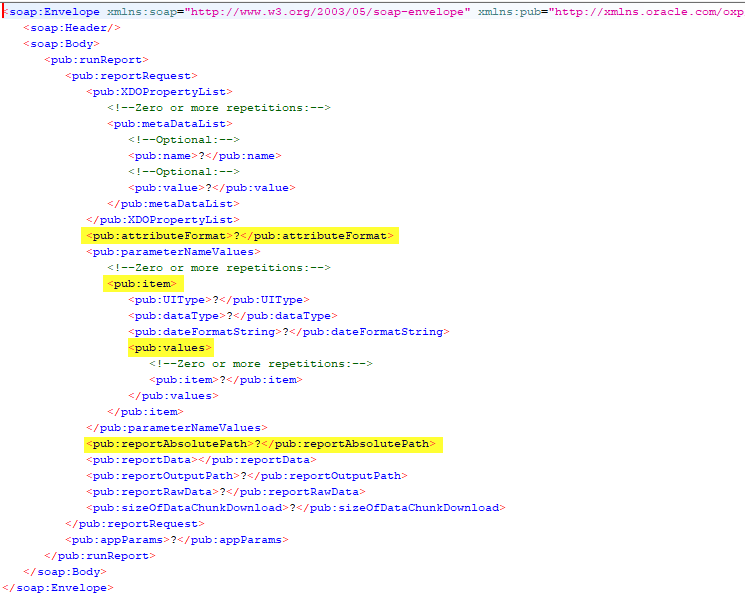
Below is the Sample payload for this Webservice -

Here, we need to mention the absolute path of the report and we can also pass all necessary parameters to the same.

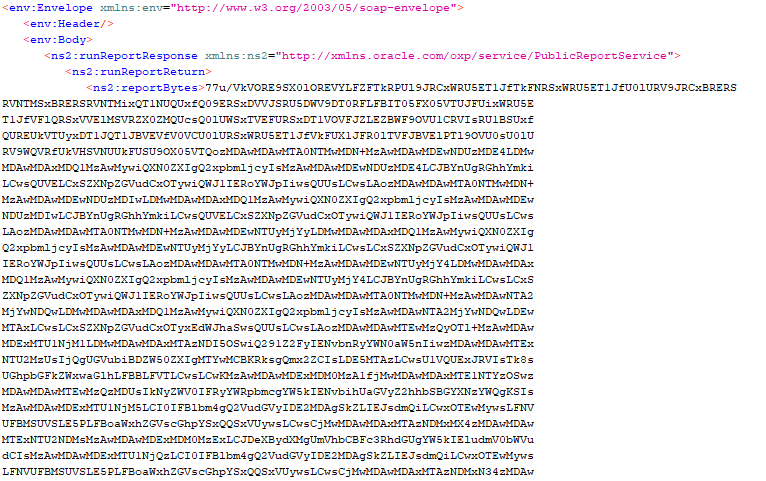
Once successful, the output will be in Base64 format similar to following sample -

The triggering heterogeneous would be able to decode the Base64 output into plain text and consume the same for further processing.


Share:

Wednesday, June 30, 2021

Deriving Business Object Service Endpoint and WSDL in Oracle Fusion

In order to derive the external virtual host and port for a tokenized service WSDL, we need to use the Review Topology page in the Offerings work area.
This page contains information about the domains and applications that are deployed on your cloud instance.

To access the Review Topology page, below entitlement needs to be granted to your job role -

ASM_REVIEW_TOPOLOGY_HIERARCHY_PRIV


Using the Service Catalog Service, below example shows how to derive the concrete service WSDL URL from the following tokenized URL -

https://(FADomain,FSCMServices)/fscmService/ServiceCatalogService?WSDL


Navigate to Setup and Maintenance work area, click the Tasks icon, and select the Review Topology task -


On the Review Topology page, select the Detailed tab.


In the Name column, expand the FADomain node.


Expand the FSCMUI subnode. 
For example-

The virtual host value is fs-your-cloud-hostname.

The port value is 443.

Replace the values in parenthesis in the tokenized URL with the identified external virtual host and port values: https://fs-your-cloud-hostname:443/fscmService/ServiceCatalogService?wsdl

Remove ?wsdl from the URL to derive the Service Catalog Service end point URL.


Share:

Wednesday, June 16, 2021

How to display images dynamically in BI Publisher reports in Oracle Fusion

Alright, so you have a set of images (say a few company Logos) that you want to display dynamically in your report based on some criteria.

Let's see how to achieve this in ERP Cloud BI Publisher.

  • First step is to convert convert the image file(s) into base64 encoding. You can use any open source web based tool to convert a given image and retrieve it's corresponding Base64 data.

  • Now you should have the base64 encoding representation of the image(s). 
    For example the following image has the below base64 representation -

    Image - 


    Base64 data -


  • Create the data model that decides which image should be displayed for a particular set of data depending on the required conditions and ensure to select the actual Base64 data as one of the XML tags.

  • Now, let's see how we can convert Base64 information in RTF and display it as an image.

  • This can be done using "foreign object" construct like this -
    <fo:instream-foreign-object content-type="image/jpg"><?IMAGE1?></fo:instream-foreign-object>

    Here IMAGE1 is a tag containing Base64 data of the image in your XML output.

  • XML data should look like this -


  • Below is how your template will look like -


  • And here's the output of your report showing the image dynamically -

Share:

Sunday, May 30, 2021

How to Change The Generic Logo to Your Company's Logo in Bill Presentment Architecture

Bill Presentment Architecture (BPA) allows you to retrieve billing data from multiple data sources for presenting a bill i.e. the bill presentment is no longer limited to information pertaining to AR. It provides template-based configuration of online and printed bills and gives us the ability to select the content of the bill, configure the layout design, display drilldown details and much more.


BPA provides default templates that you are not allowed to modify. 

If you need to make modifications to a default template then you are required to create your own template by duplicating a default template. 

Then on the duplicate template, you can put your customizations to support your requirements.


Now the question is if  the only change you want to make on the default template is replace the logo with your company's logo, then how to achieve it without really creating a entirely separate custom template ?


Well, following workaround comes handy in such cases:

- Create an image of your company's logo and save it to ag_genericlogo.gif

- Copy your company logo to the OA_MEDIA directory

- Run "Generate Stylesheet for BPA Templates" concurrent program for all templates. 

- Your company logo will now show up for all default templates.

The middle tier needs to be bounced after replacing the images


Share: